Login to ICP:
Access the ICP Panel by entering the access URL provided in your Configuration and Usage Instructions email (for example, https://vpsXXXX.panel.icontainer.run:2090/admin).
Enter your login credentials to access the ICP Panel.
Guide to Installing SQL Server
1. After logging in, you will be taken to the main interface of the ICP Panel
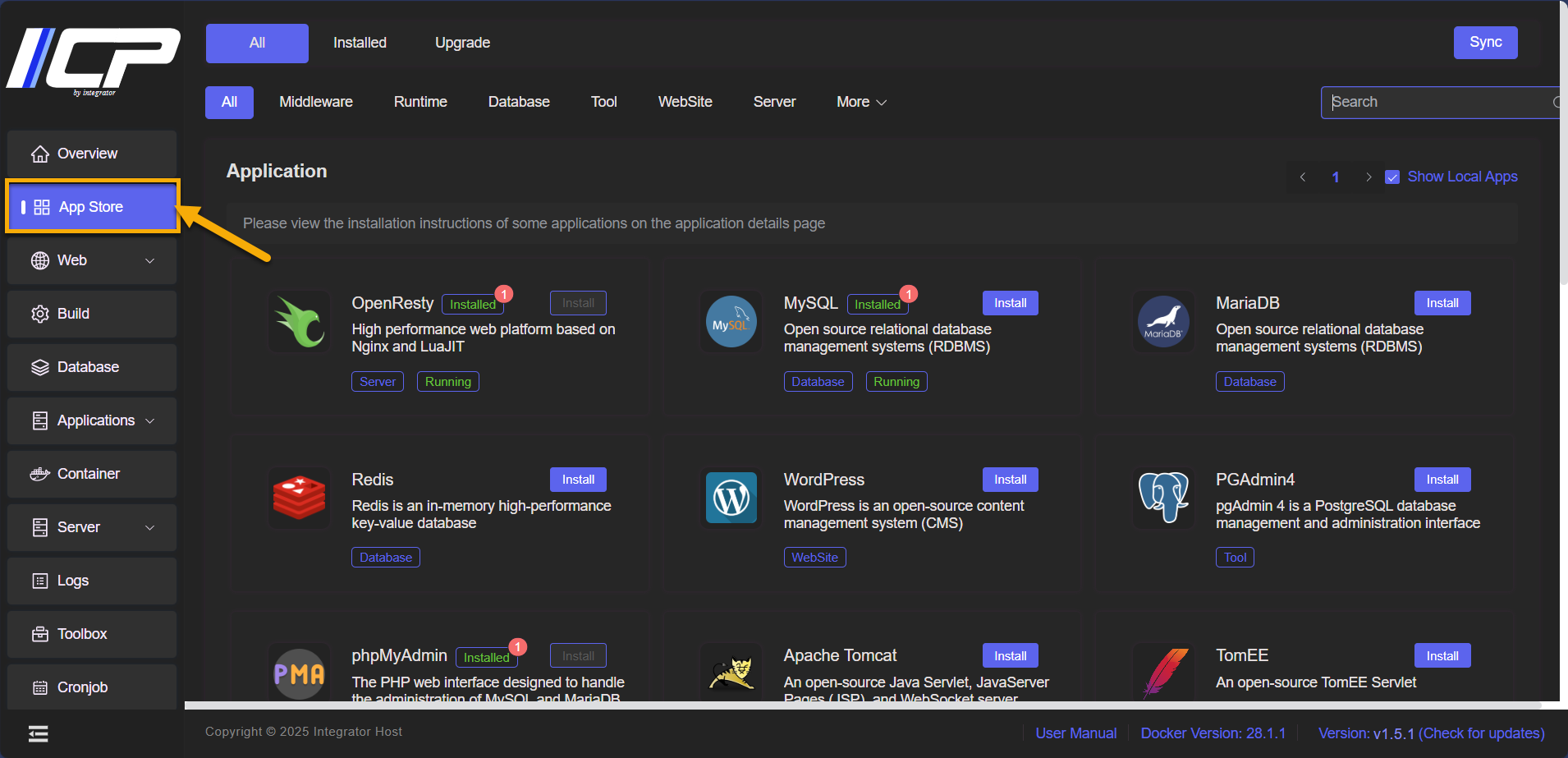
2. In the side menu, locate and click on App Store
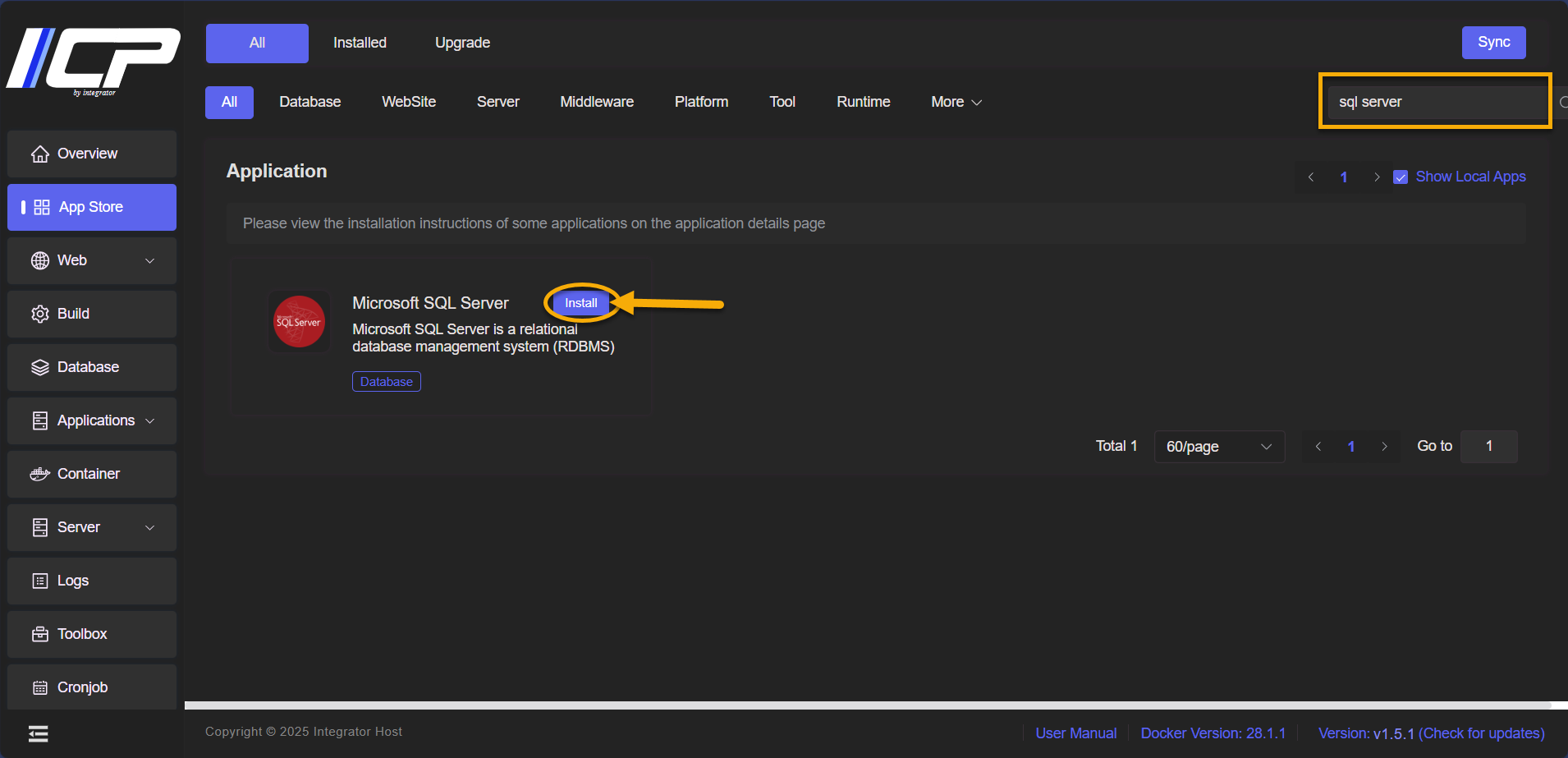
3. Search for SQL Server and click the Install button
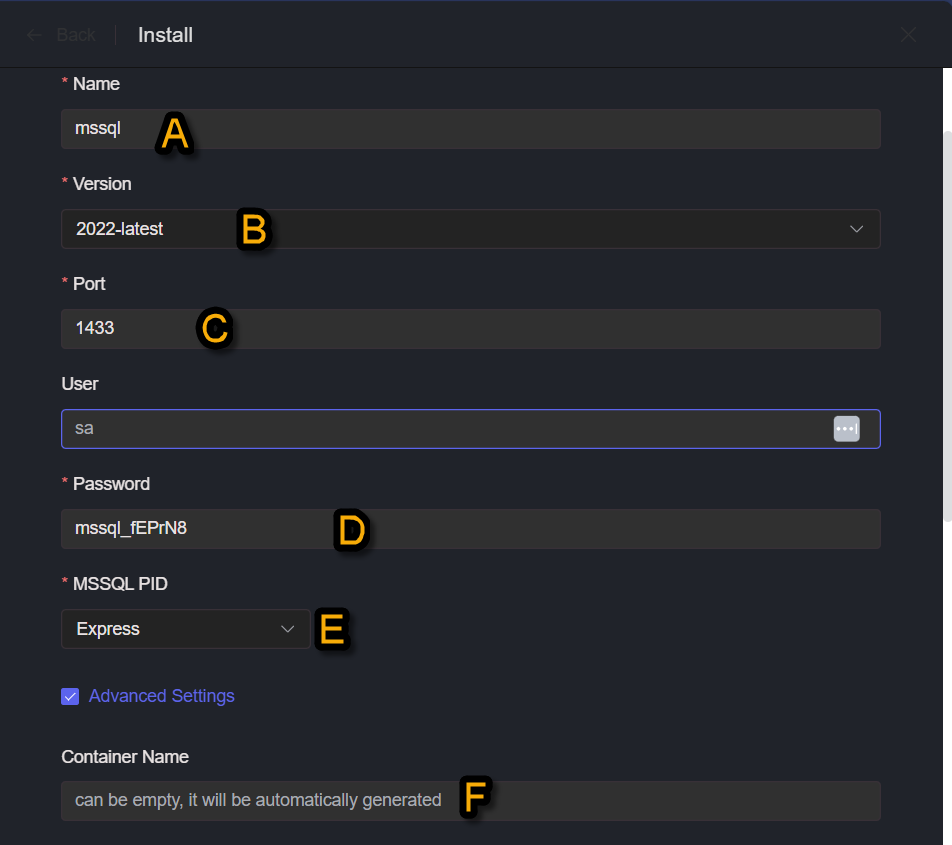
5. Fill out the form with the desired information:
A. Enter the Name of your SQL Server project
B. Select the SQL Server Version
C. Set the Port where your application will run
D. Create and enter the SA user password
E. Choose the desired PID
F. Define the Container Name, or leave it blank and it will be filled in automatically
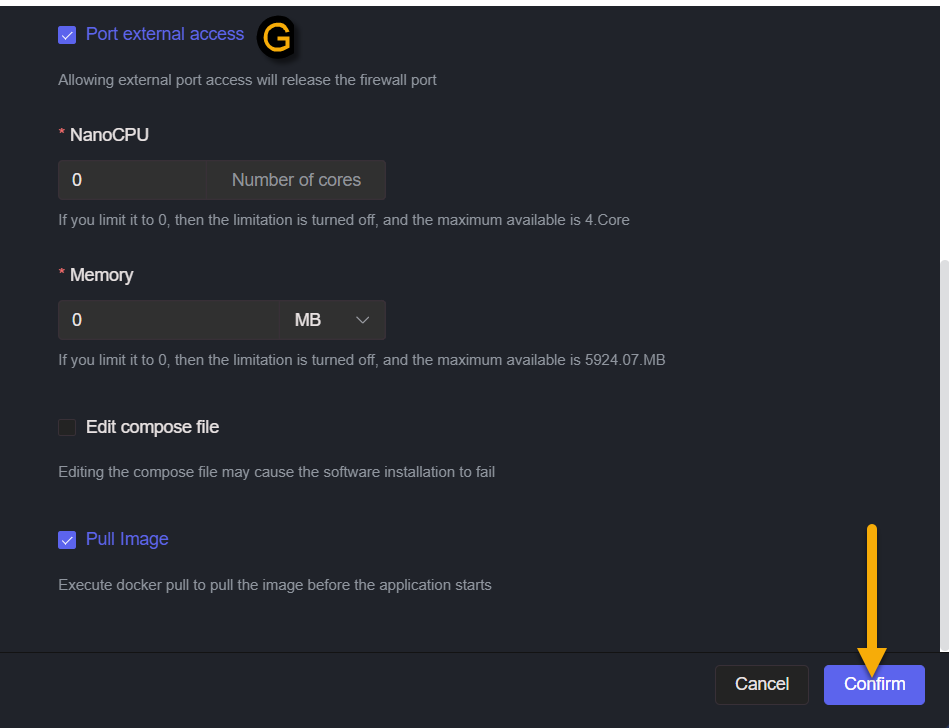
G. Check the option to Allow External Access
Finally, click Confirm to complete the installation
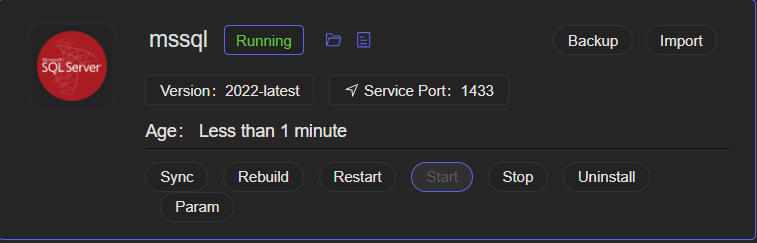
5. Done! SQL Server has been installed