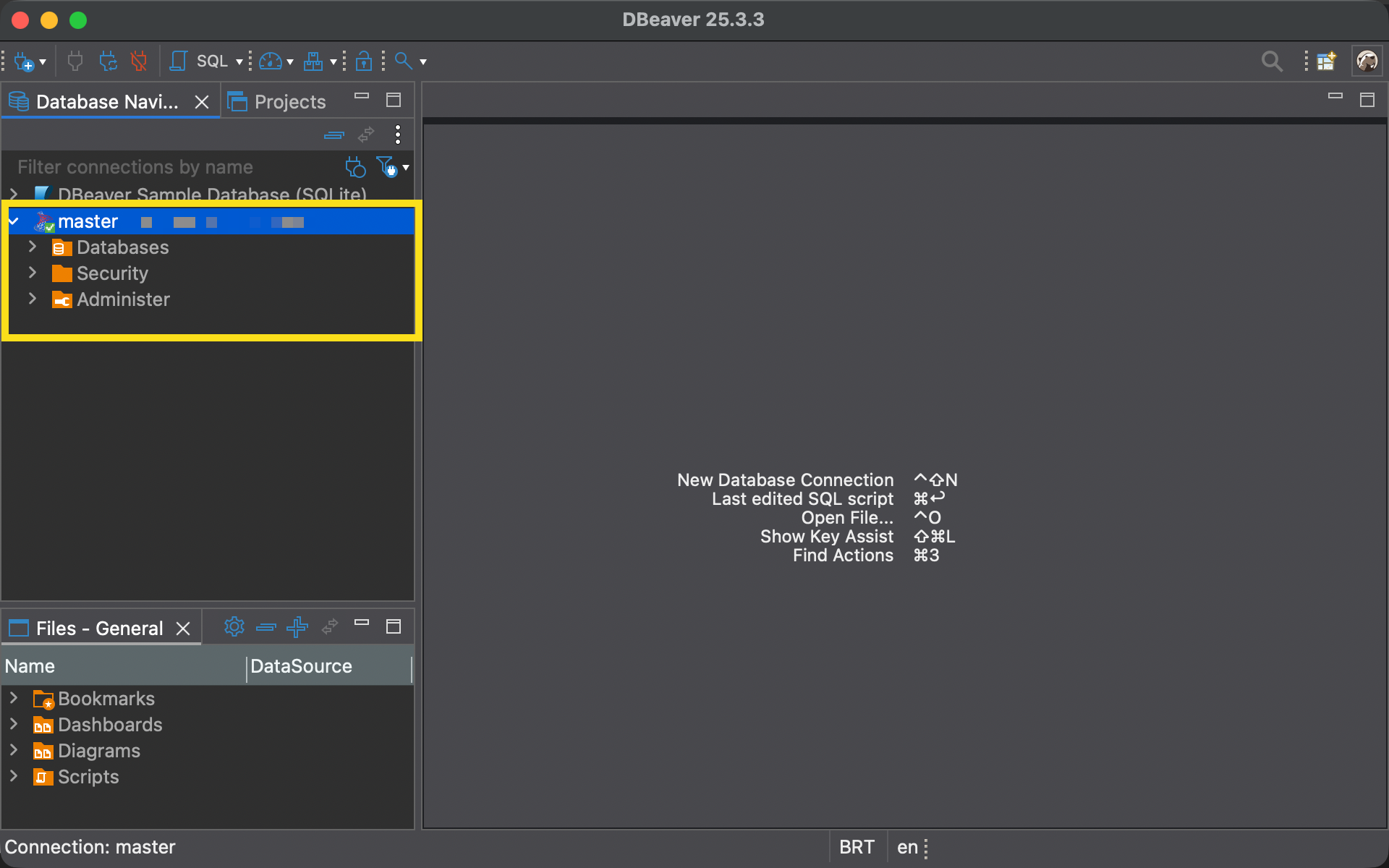
¶ Before You Begin
Before starting the configuration, make sure you already have the following items:
→ DBeaver
If you don’t have DBeaver installed yet, download it from the official website:
→ SQL Server on ICP
If SQL Server is not installed yet, install it by following the appropriate tutorial
¶ Required Information
During the process, you will need the following information:
→ Your VPS IP address
→ SQL Server connection parameters
How to Find SQL Server Parameters in ICP
1. In the ICP side menu, go to App Store
2. Select the Installed tab
3. Locate SQL Server
4. Click the Param button

A screen with the connection details will be displayed.
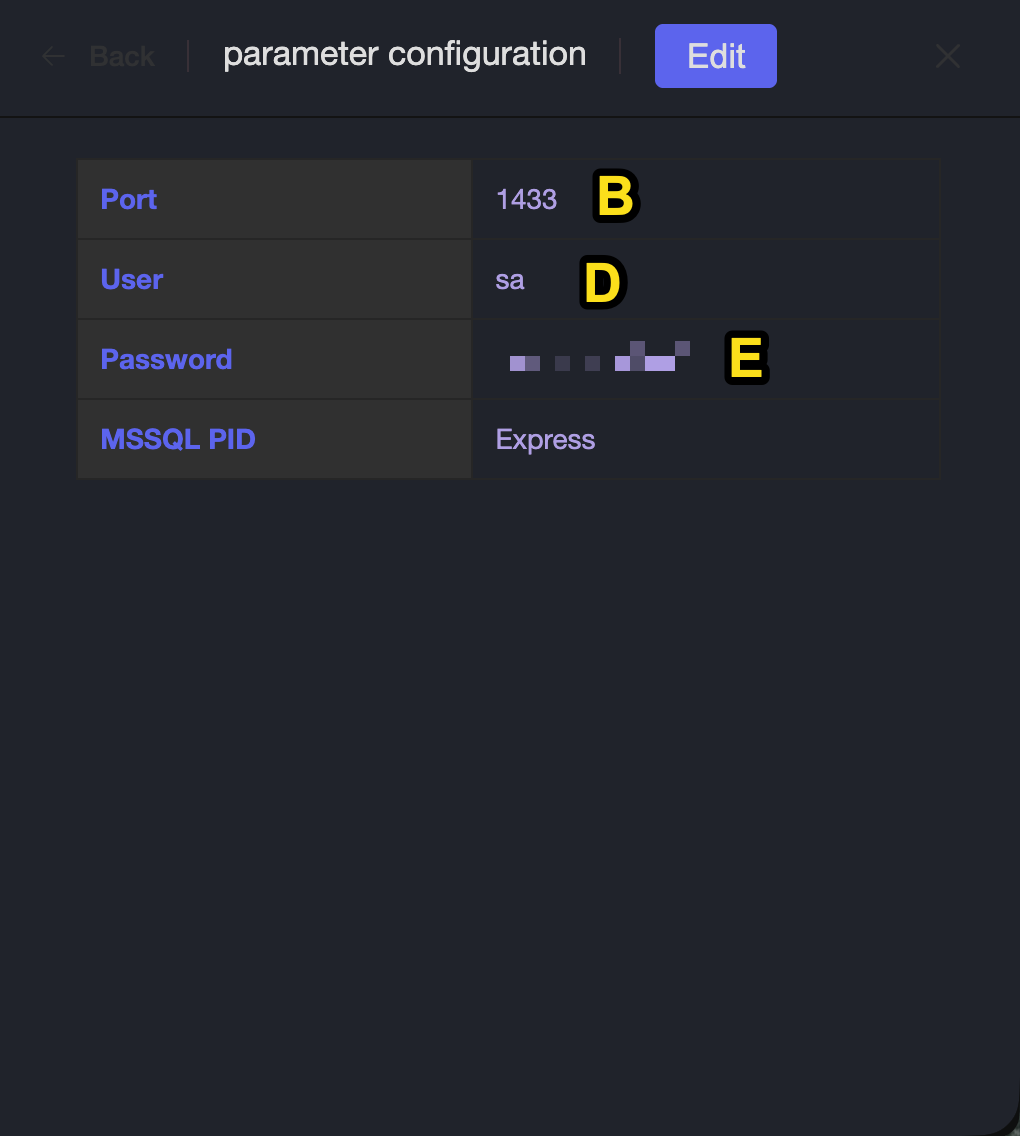
⚠ Keep this screen open, as it will be essential in the next steps.
¶ Connecting SQL Server in DBeaver
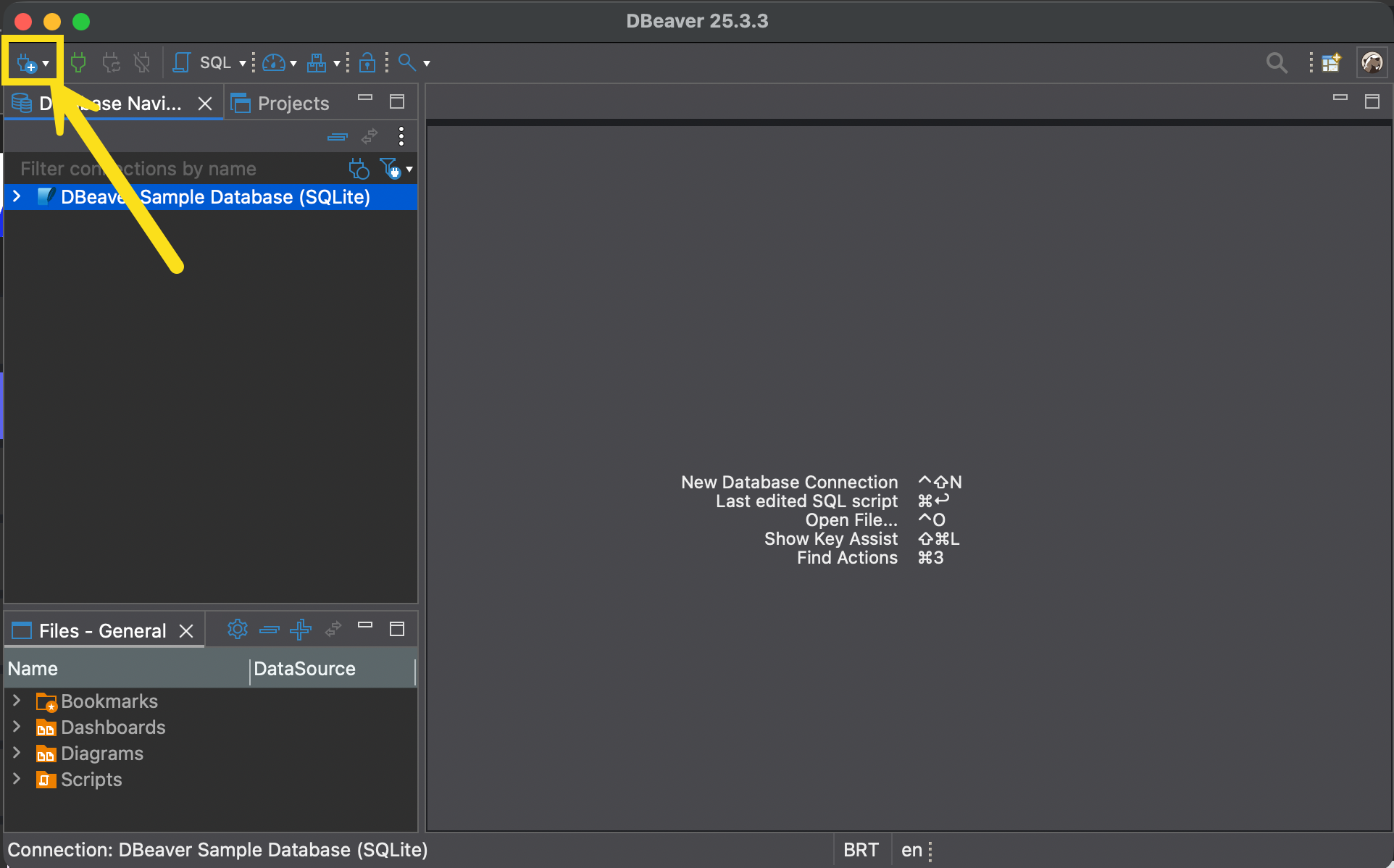
1. Open DBeaver
2. Click the New Connection icon (plug with a plus sign) located in the top toolbar
3. From the list of databases, select SQL Server
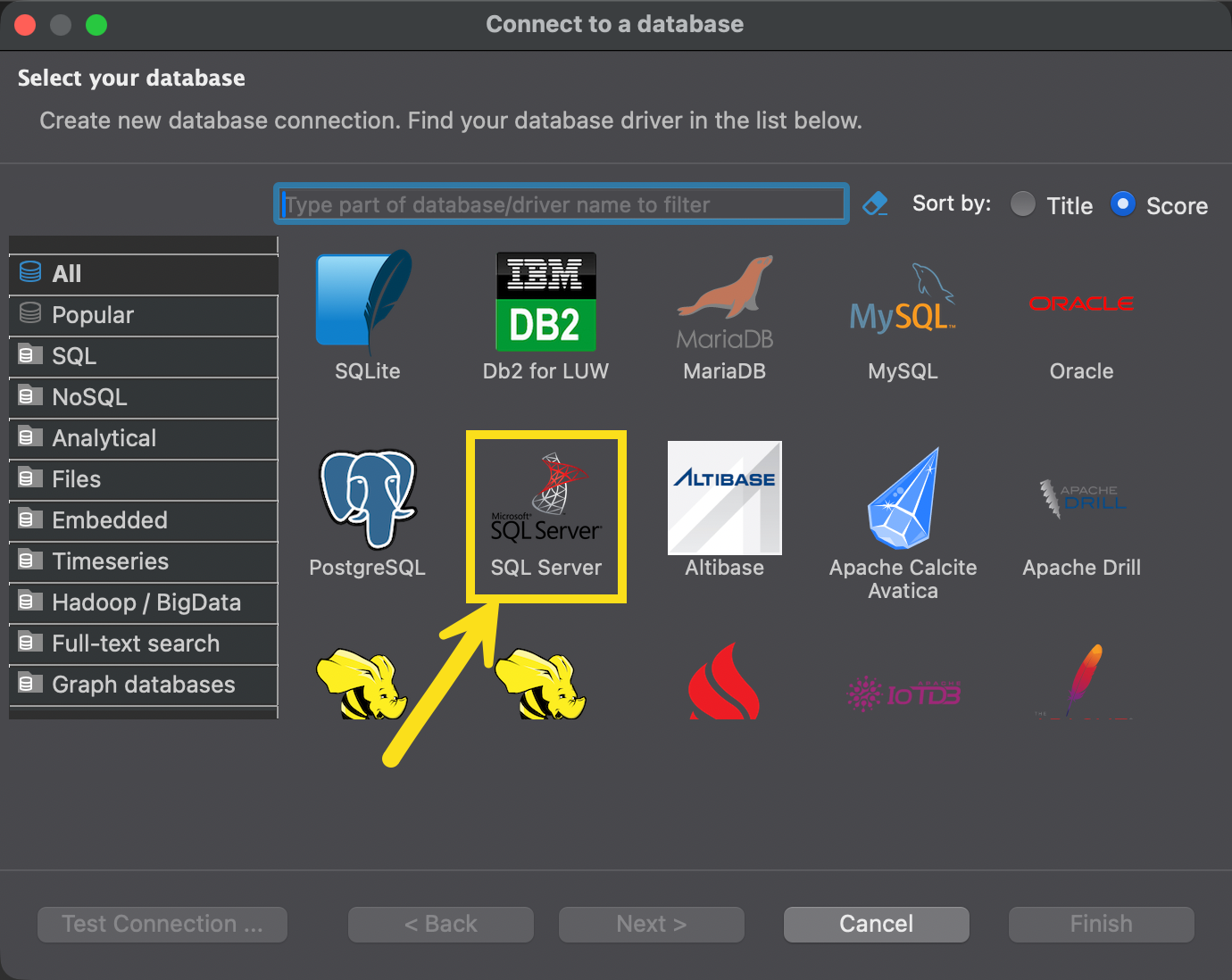
4. Click Next
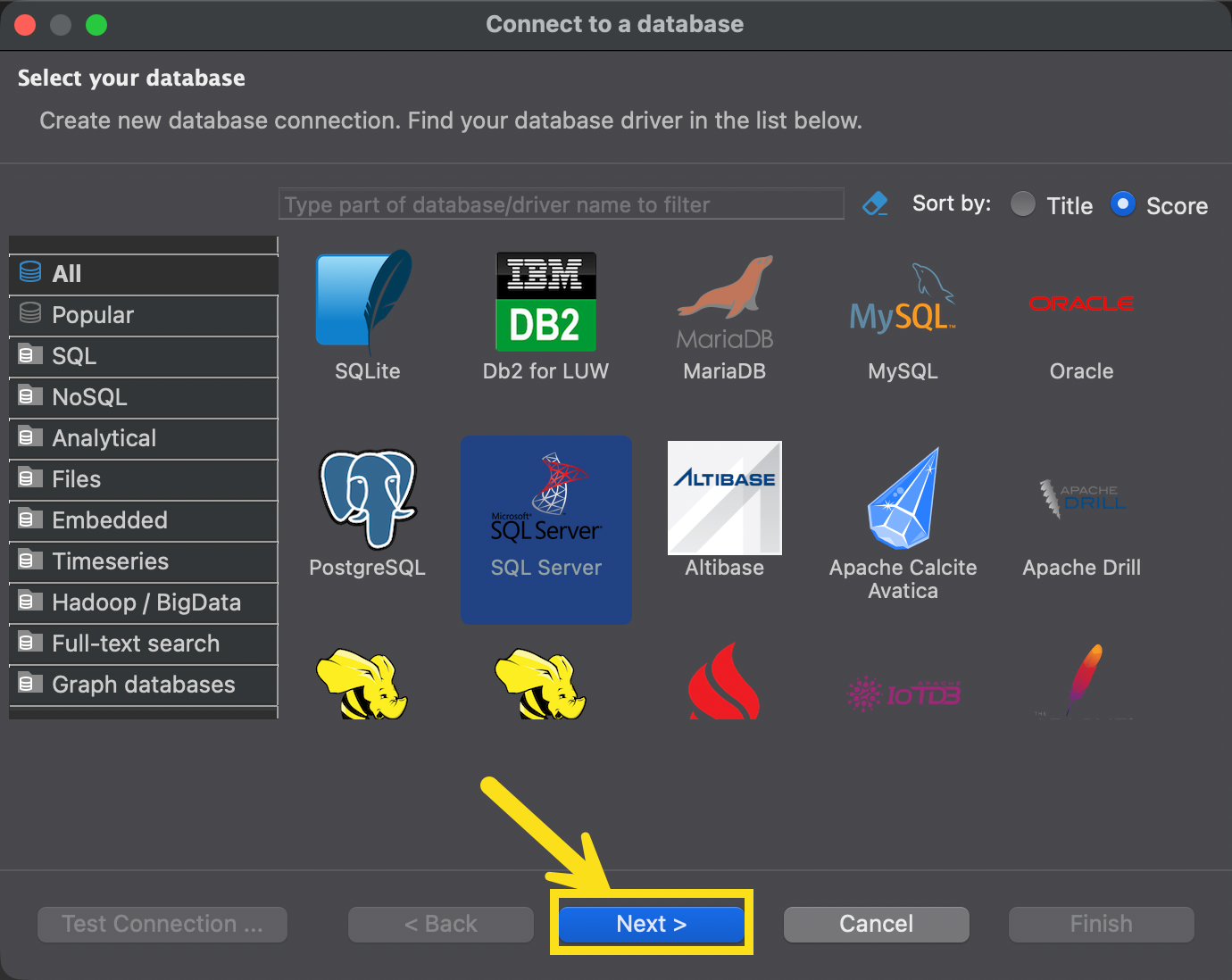
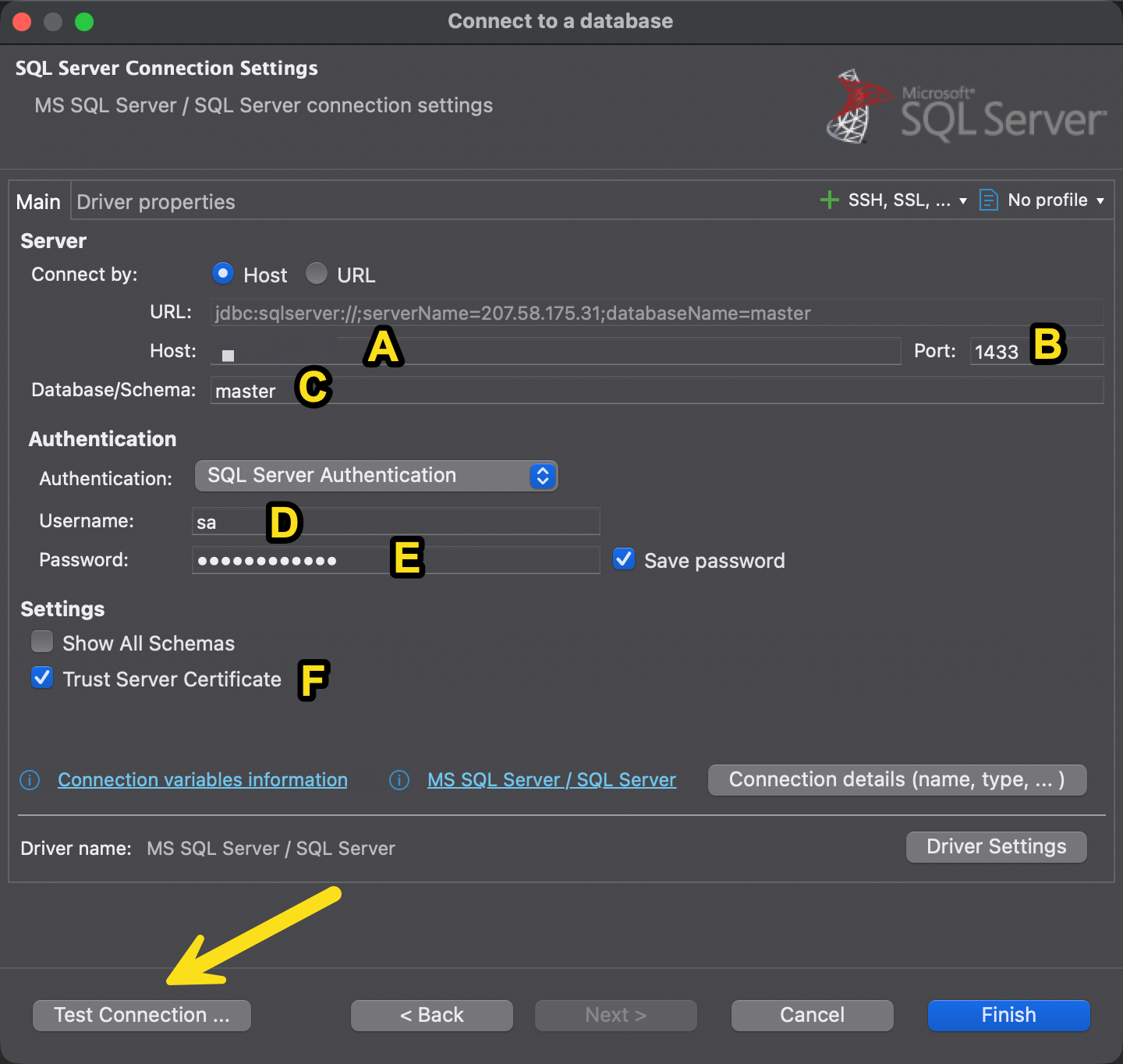
5. Fill in the fields as follows:
A. Enter your VPS IP address
B. Enter the SQL Server port (usually 1433)
C. Enter the database name
D. Enter the SQL Server username
E. Enter the user password
F. Check the option Trust Server Certificate
After filling in all fields, click Test Connection.
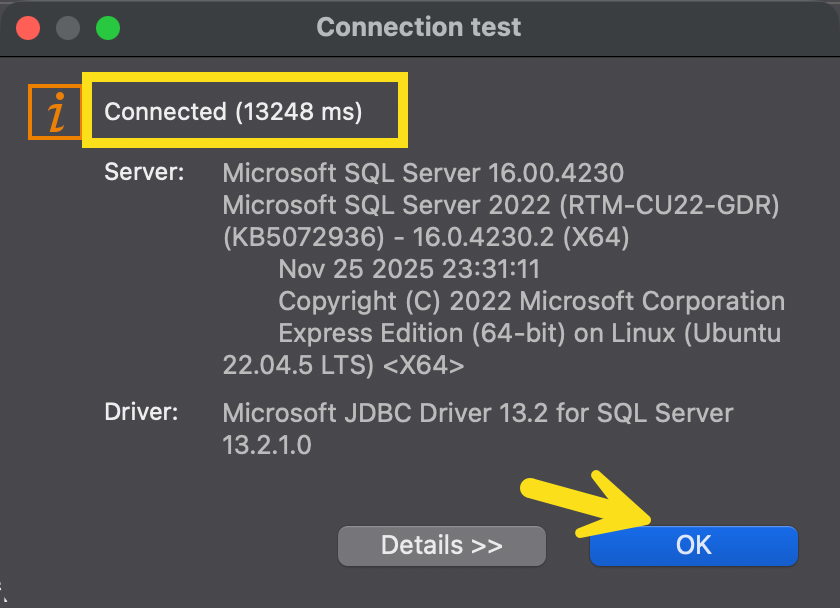
6. If the connection is successful, click OK
7. Click Finish to complete the setup
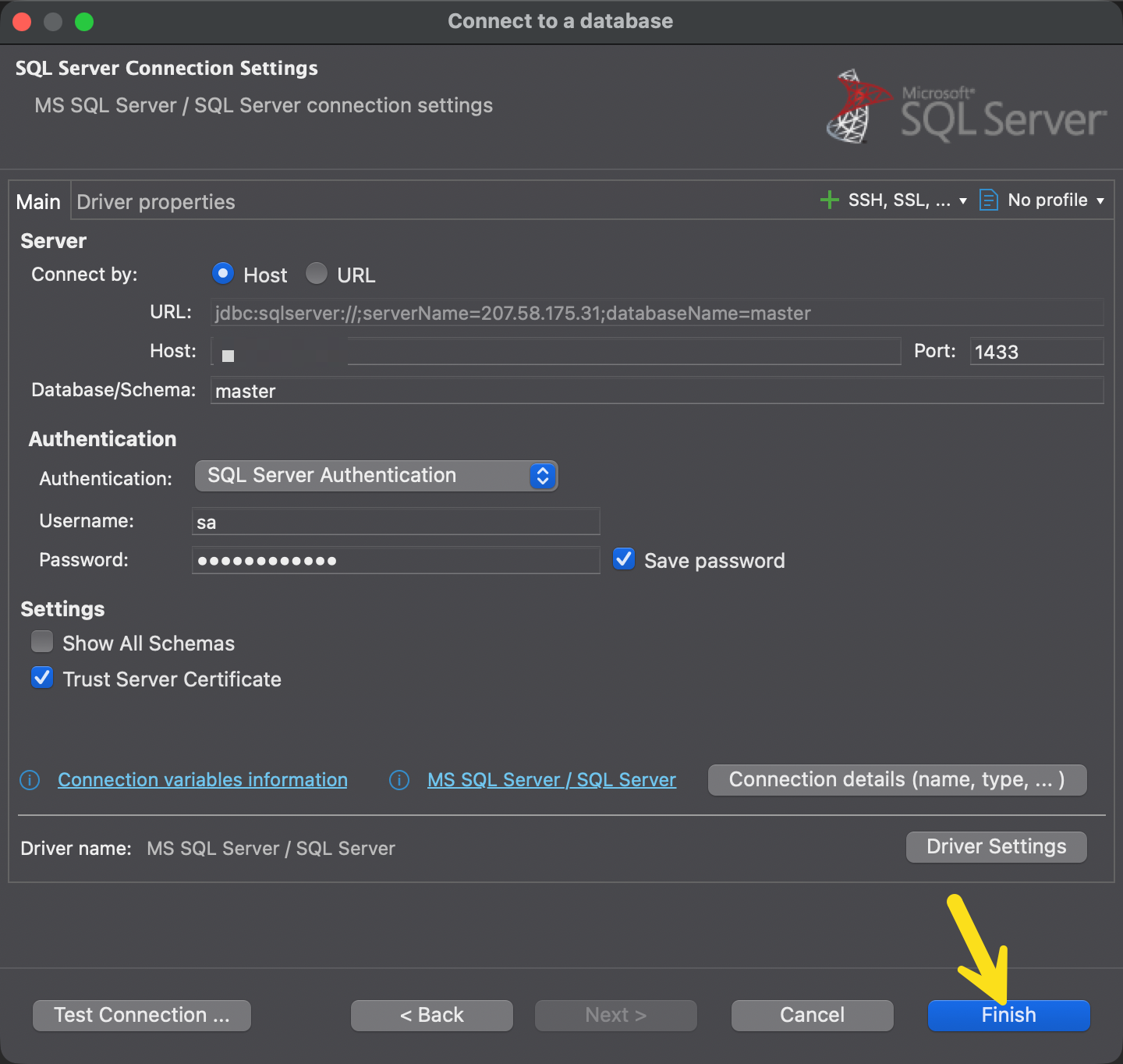
8. Done! SQL Server will now be connected to DBeaver and ready for use